Compare
Don't shop Excel diff tools by logo. Shop by the job.
Updated September 1, 2026
Quick answer
Most Excel diff tools do one of two jobs: strip the file to text, or lock the review inside a desktop add-in. A visual web diff compares the real workbook — formulas, formats, charts, sheets — and lets anyone open the proof in a browser. Excel Change Log is built for that third job.
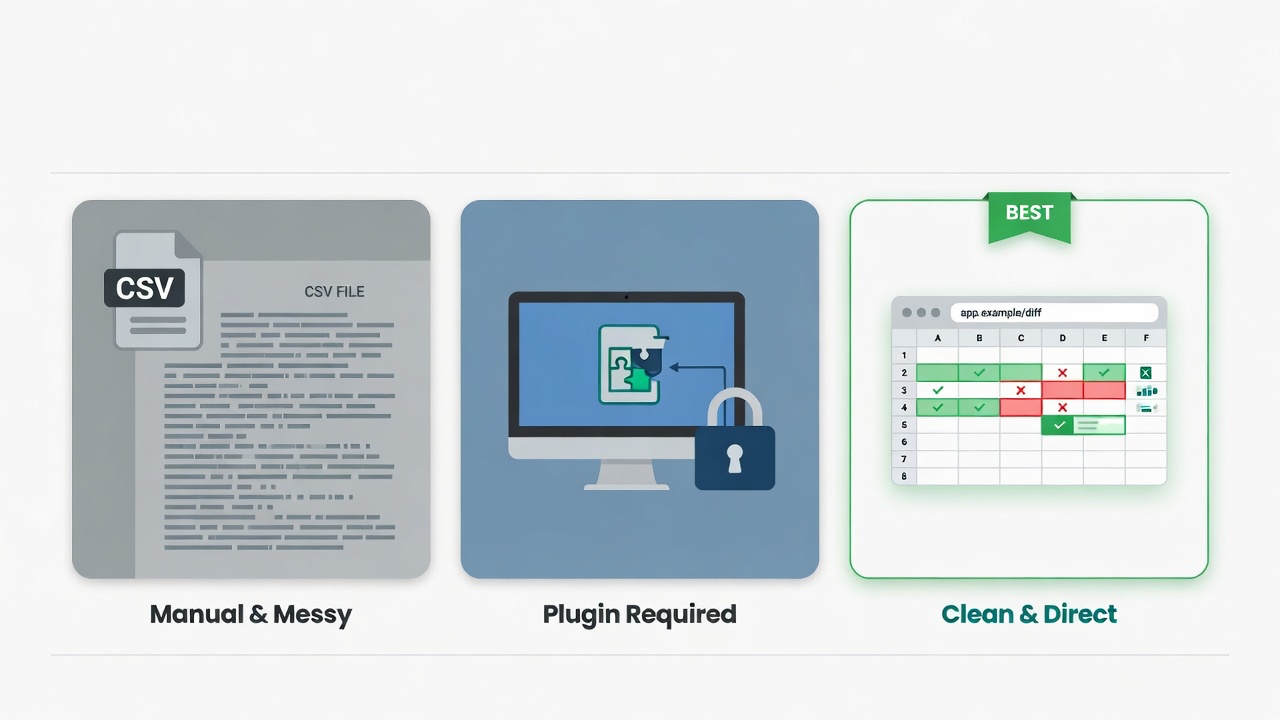
Three ways people compare Excel files
We compare approaches, not logos. Tools in each category vary — the job they can do does not.
Approach 1
Text / CSV diff
Fast for a flat list of numbers.
Formulas, formats, charts, and extra sheets disappear.
Fits: Tiny value-only export. Nothing else.
Approach 2
Desktop add-in
Deep Excel power — if IT already installed it.
Your auditor, CFO, or client often cannot open the same view.
Fits: Every reviewer is a power user on a managed laptop.
Approach 3
Visual web diff
Review the real workbook in a grid that looks like Excel.
Share a link. Keep version history. No install.
Fits: Budgets, models, and board packs that other people must approve.
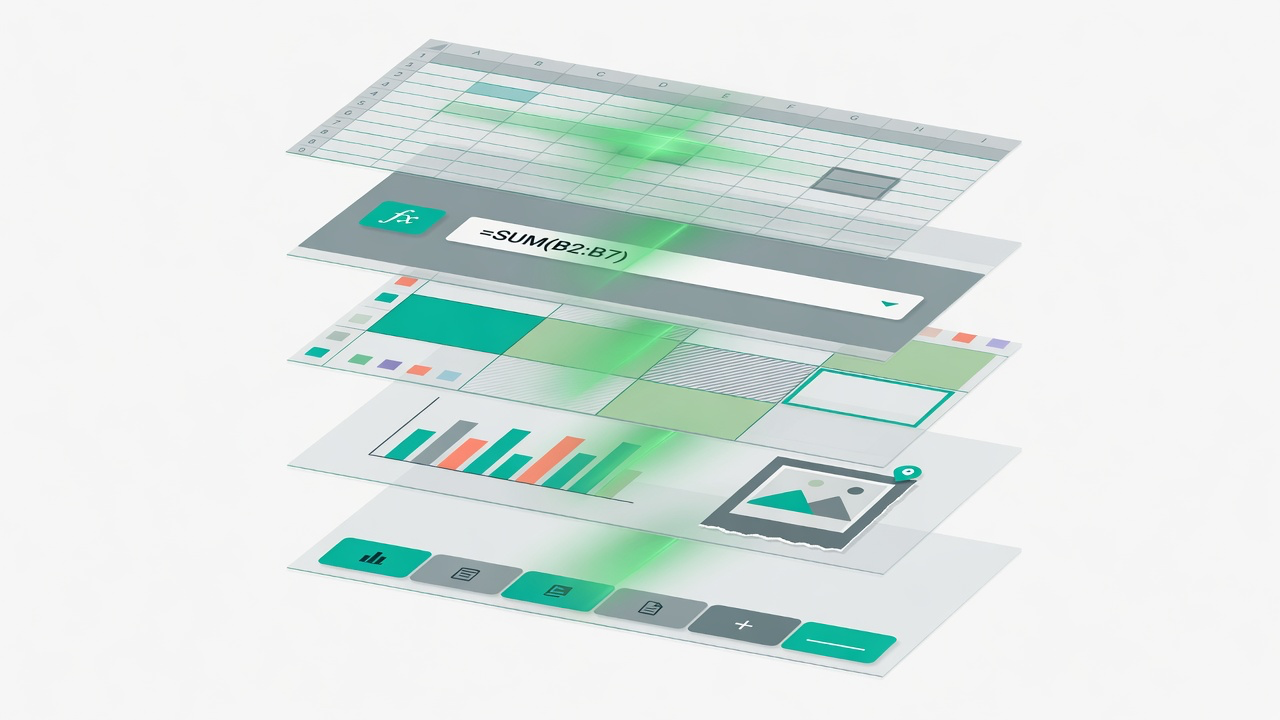
Why layer coverage matters
Totals can look unchanged while a formula was swapped for a hard-coded number, a chart was restyled, or a supporting sheet was renamed. Text diffs never see those layers. Desktop add-ins often see them — then trap the evidence on one machine. A visual web diff shows the layers and lets someone else open the same view.
At a glance
What each approach actually catches when you review a real workbook.
| What you need | Text / CSV | Desktop add-in | Excel Change Log |
|---|---|---|---|
| Cell value changes | Yes | Yes | Yes |
| Formula edits | No | Yes | Yes |
| Formatting & styles | No | Sometimes / limited | Yes |
| Charts & images | No | Sometimes / limited | Yes |
| Sheet added / removed / renamed | No | Yes | Yes |
| Visual spreadsheet grid | No | Yes | Yes |
| Share link (no account) | No | No | Yes |
| Works without installing Excel | Sometimes / limited | No | Yes |
| Version history for recurring files | No | Sometimes / limited | Yes |
Yes Yes Sometimes / limited Sometimes / limited No No
Who can open the proof?
A diff only helps if the person who must sign off can see it. Count the seats, not the features.
Text / CSV
Usually just the analyst who ran the export.
Desktop add-in
Teammates who already have the plugin — not the auditor on a locked laptop.
Excel Change Log
Anyone with the link: CFO, client, or auditor. No account required.
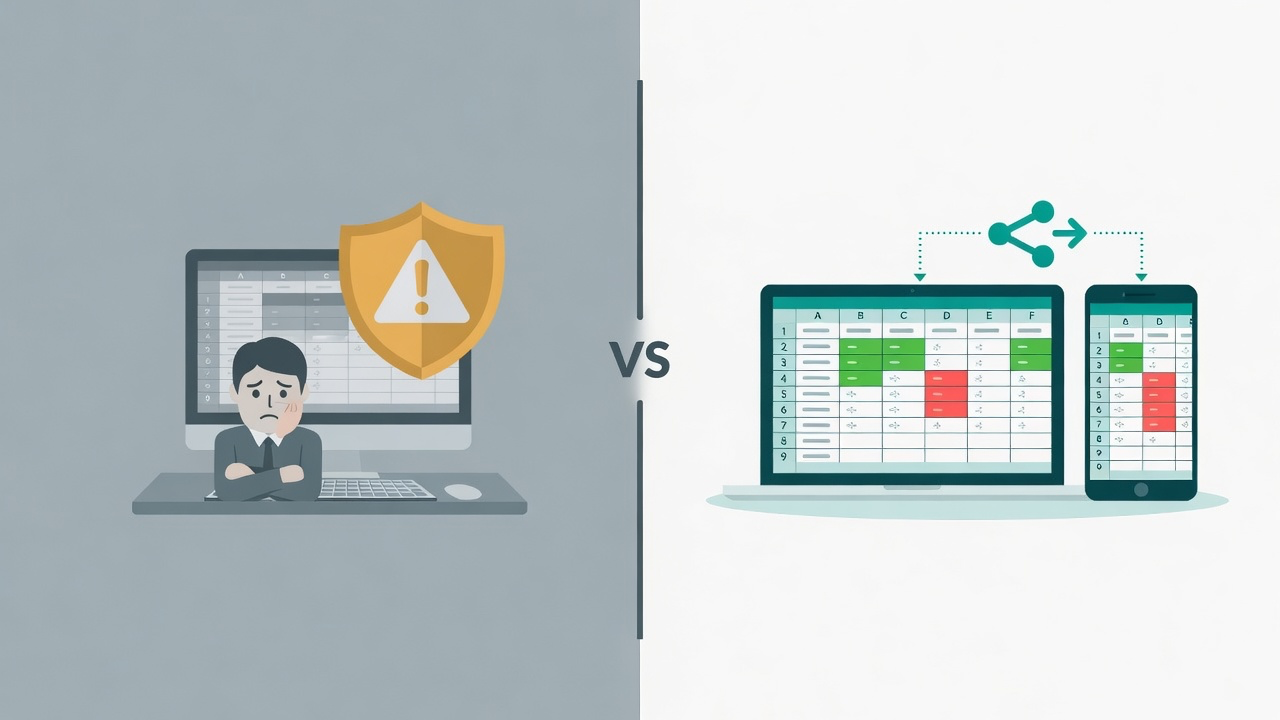
The review path, side by side
Fewer hand-offs means fewer places for a material edit to hide.
Typical other-tool path
- 1 Export to CSV — formulas and charts vanish
- 2 Paste into a text tool and squint
- 3 Screenshot whatever you noticed
- 4 Email the screenshot
- 5 Book a meeting to explain the rest
Excel Change Log
- 1 Upload Version A and Version B
- 2 Review highlighted changes in a spreadsheet grid
- 3 Send a read-only link to whoever approves
Match the job to the approach
If the job is small and flat, text is enough. If people must approve a real workbook, it is not.
| Your situation | Text / CSV | Desktop add-in | Excel Change Log |
|---|---|---|---|
| Tiny flat CSV, value-only check | Best fit | Overkill | Works |
| Formula-heavy budget or model | Misses it | Works | Best fit |
| Board pack with charts and images | Misses it | Limited | Best fit |
| Auditor / CFO who cannot install software | Misses it | Misses it | Best fit |
| Same file revised every week of close | Misses it | Limited | Best fit |
| Every reviewer already lives in Excel + IT add-in | Misses it | Best fit | Works |
How to use this page
- Name the job — board pack, close file, tiny CSV — before you name a tool.
- Count the layers that job needs. If formulas, charts, or sharing are in play, skip text/CSV.
- Ask who must see the proof. If that person cannot install an add-in, you need a link.
- Try the free demo on a real workbook. Sixty seconds tells you more than a feature list.